How to Create a Persona
To create a new Persona in Promethist Studio:
-
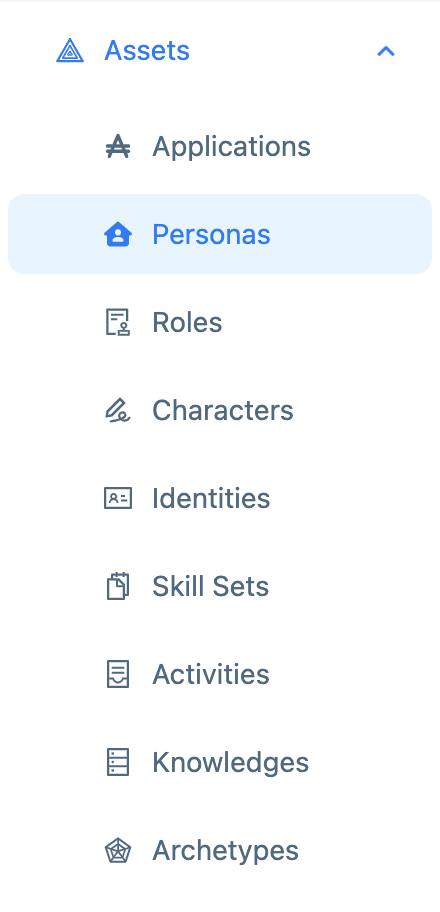
Navigate to the asset "Personas"
-
Click on "Create"

Fill in the fields as described in the Persona Properties table below.
Persona Properties
| Property | Description |
|---|---|
Persona Name |
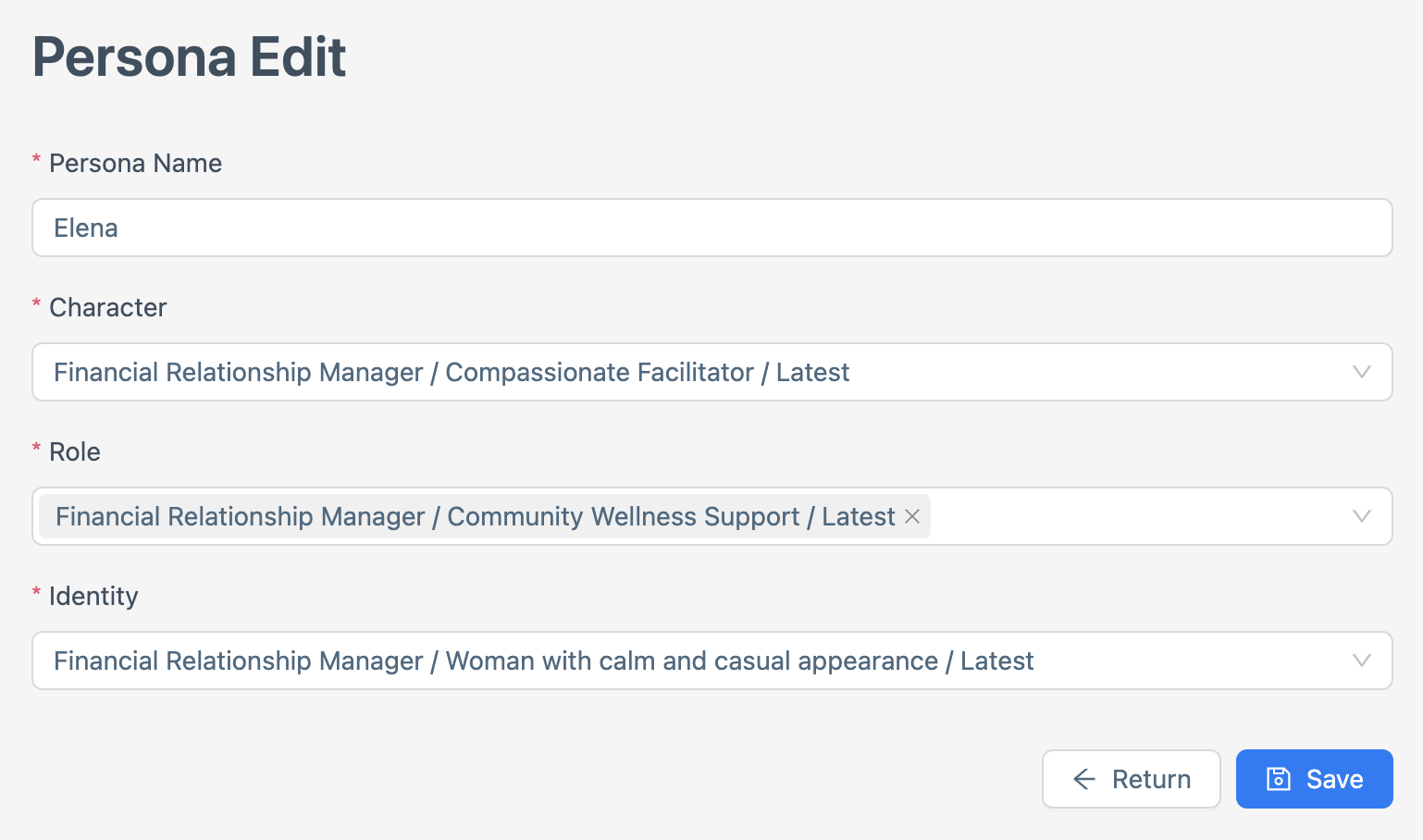
Create a unique, descriptive name for the Persona. This defines how the Persona introduces itself and understands its identity. Example: Elena Use a name that reflects the Persona’s purpose and avoids confusion with other Personas. |
Character |
Select a Character from the list of published Characters to define the Persona’s personality and social behaviors. After selecting a Character, choose the desired version from the dropdown, typically the latest or highest number. Example: Compassionate Facilitator Ensure the Character aligns with the Persona’s intended communication style. |
Role |
Select a Role from the list of published Roles to define the Persona’s business responsibilities. After selecting a Role, choose the desired version from the dropdown, typically the highest number. Example: Community Wellness Support Select a Role that aligns with the Persona’s intended purpose and project goals. |
Identity |
Select an Identity from the list of published Identities to define the Persona’s unique profile, including visual appearance, voice, and background. After selecting an Identity, choose the desired version from the dropdown, typically the latest or highest number. Example: Woman with calm and casual appearance Choose an Identity that matches the Persona’s intended profile. |
Finalizing the Persona
Once you have completed all desired fields for the new Persona:
-
Click the Create button in the bottom-right corner.

Your Persona is now created and saved. You can view it in the Personas main page.
You Want to Edit or Delete Your Persona?
Edit a Persona
To modify your Persona:
-
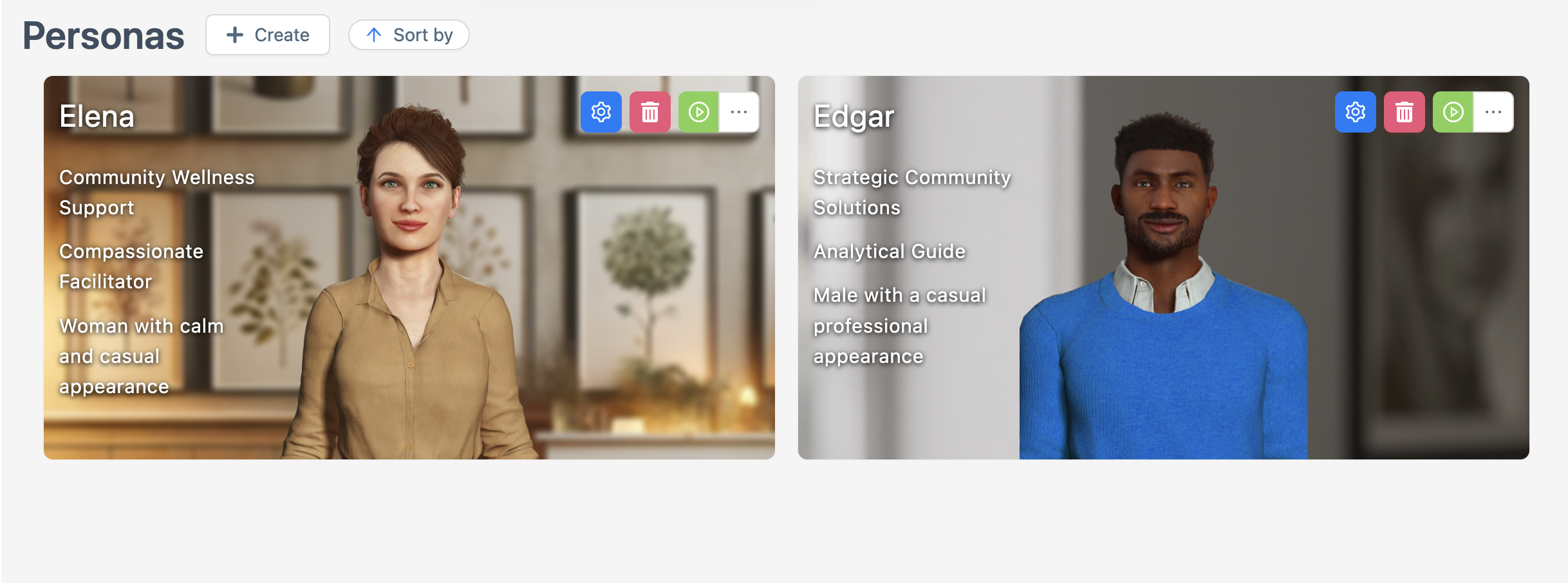
Navigate to the Personas main page and select the Persona you want to modify.
-
Click the Edit button on the Persona’s profile.

-
Update the Persona Name, Character, Role or Identity as needed.
-
Click Save to apply changes or Return to discard them.
-
Test the updated Persona How to Test a Persona.
Delete Your Created Persona
To remove your Persona:
-
Navigate to the Personas main page.
-
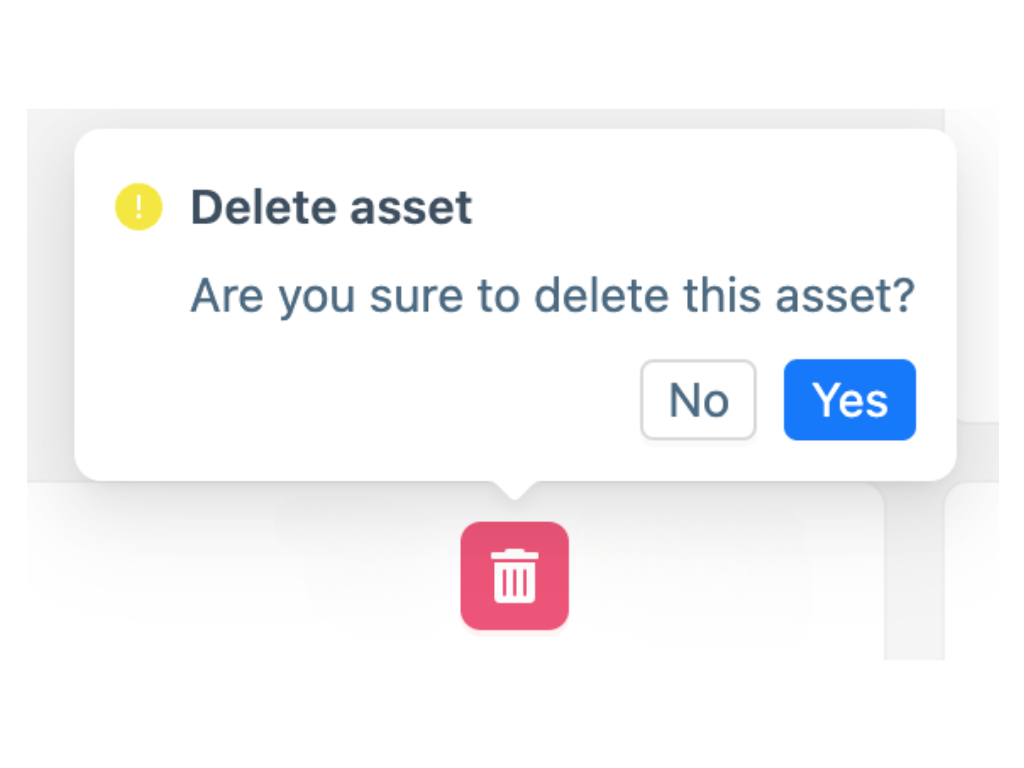
On the Personas main page, click the Delete button next to the Persona you want to remove. A confirmation window will open, asking if you want to delete the asset. Select Yes to delete the Persona or No to cancel.
|
The Persona will disappear from the main Personas view screen and from any pending publishing changes if it has not been published. |