How to Test an Identity
After creating an Identity, test it to ensure it behaves as expected in conversations.
-
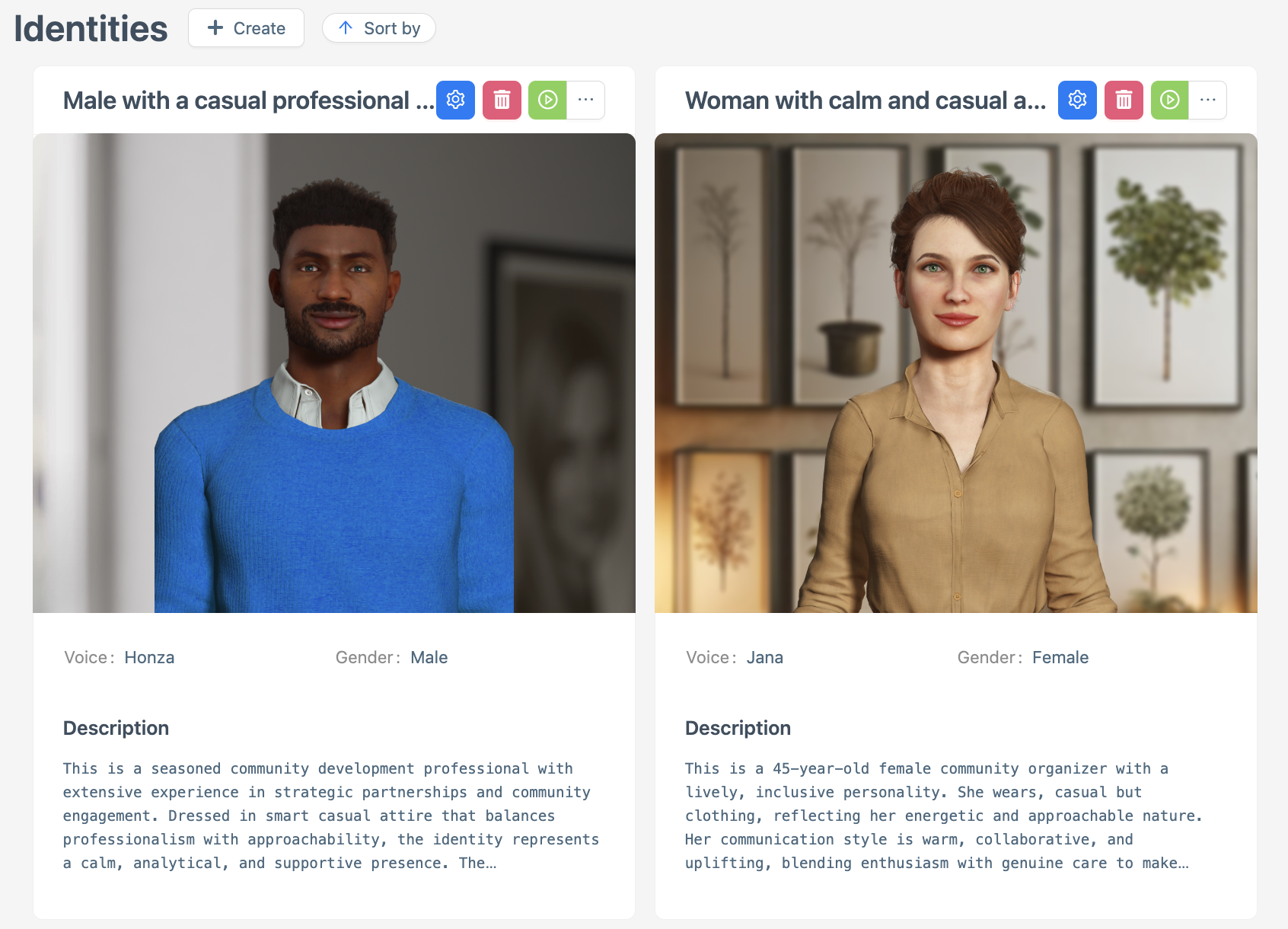
Navigate to the Identities main page and select the Identity you want to test.
-
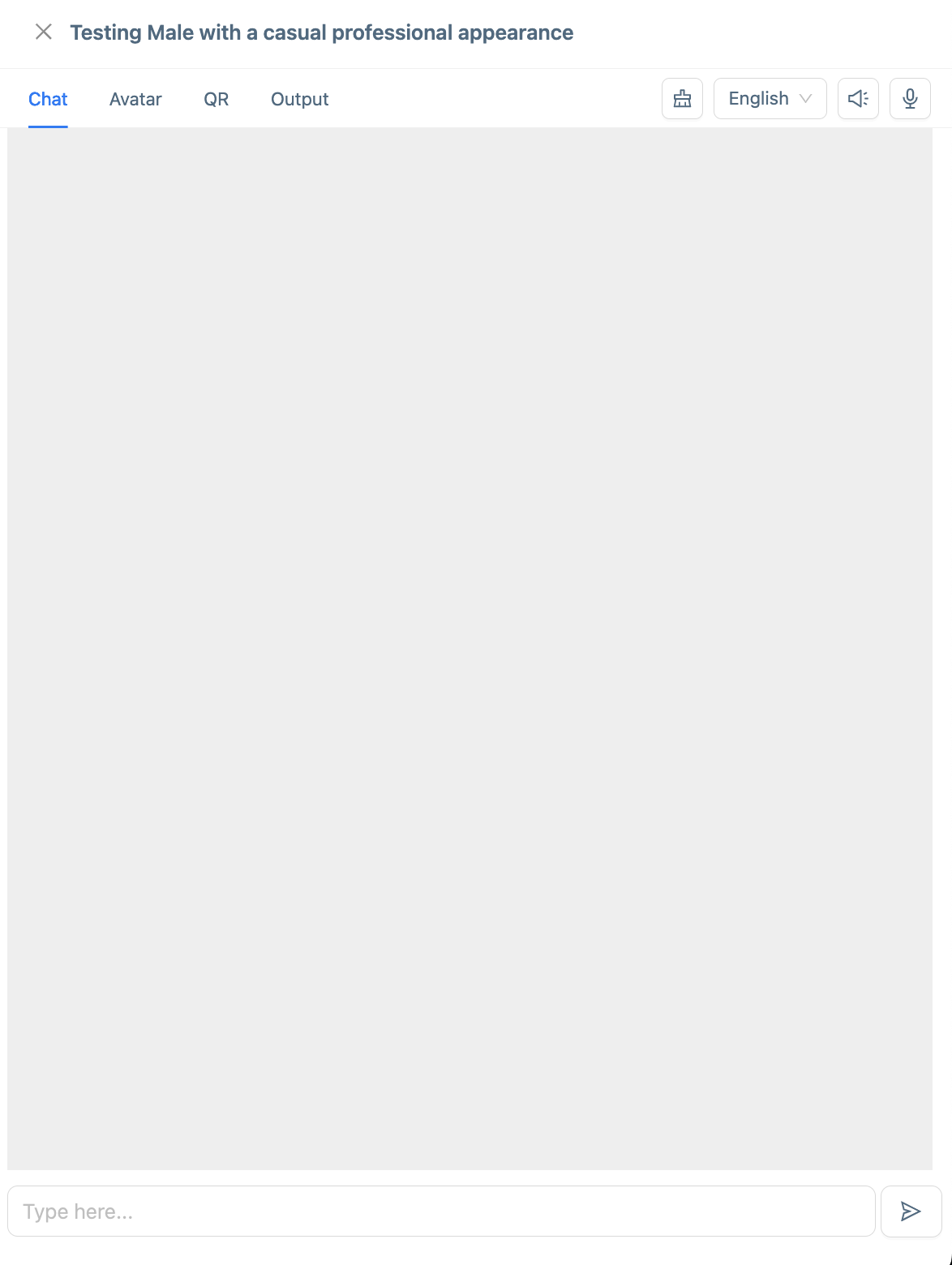
Click the green Play button on the Identity’s profile to start a session, a conversation window will open.

-
Interact with the Identity in the conversation window:
-
Enter sample inputs (e.g., greetings, questions, or commands) to simulate user interactions.
-
Observe the Identity’s responses to verify they align with the selected options. See How to Create an Identity for details.
-
Check specific behaviors, such as:
-
Correct greeting or introduction based on the Identity’s Name and Description.
-
Appropriate responses based on selected Archetypes.
-
-
Note any unexpected behaviors (e.g., incorrect responses, errors, or off-tone interactions) for further adjustments.
-
-
End the conversation by closing the window or stopping the session, if applicable.
Ensure you test a variety of inputs to evaluate the Identity’s performance across different scenarios. Refer to How to Create an Identity to confirm the expected behavior based on the selected options.
Next Steps
Based on the test results:
-
If the Identity performs as expected and is ready for use, you can start creating your Character How to Create a Character or you can publish the Identity How to Publish an Identity.