How to Publish an Application
Publishing your Application is optional—you can create, edit, and test it without publishing until you’re ready.
Publishing Your Application
Ready to make your Application live? Here’s how to publish it:
-
Optionally, test your Application to confirm it behaves as expected How to Test an Application.
Thorough testing is recommended to identify issues before publishing, ensuring your Application functions seamlessly in live environments.
-
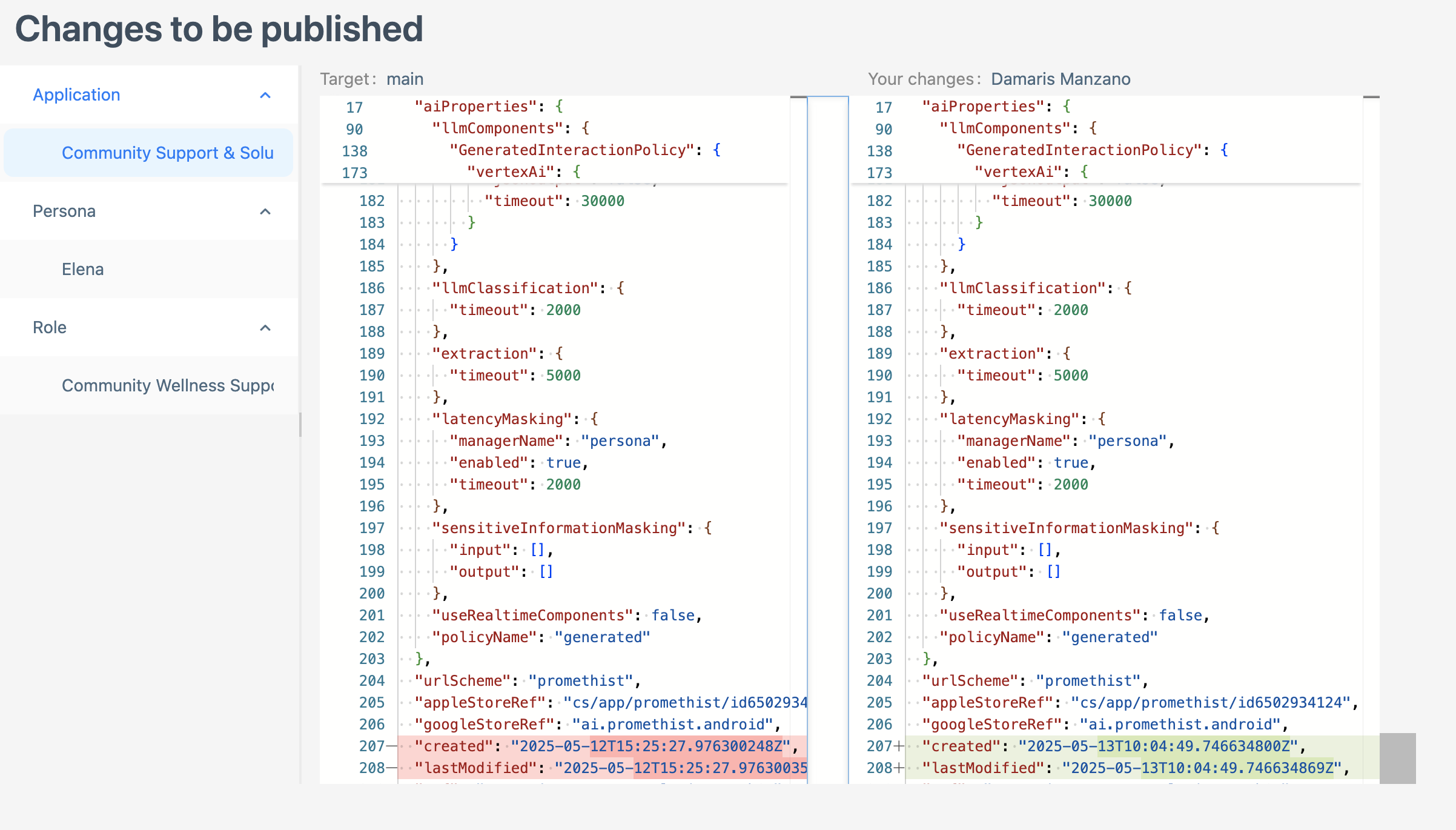
Press the Changes to be Published button in the top project panel to open a window showing all changes to be published. You can select which changes to view before publishing by clicking the different sections.
-
You can select which changes to view before publishing by clicking the different sections.
-
For an edited Application, as shown in the image:
-
The left side (in red) represents the original state, showing what will be removed or changed.
-
The right side (in green) represents the updated final version after your changes.
-
-
| For a newly created Application, only the green version will be shown, as there is no previous state to compare. |
-
Click the Publish button in the top project panel to finalize the publishing of the changes.

| Your Application is now published and active for sharing with others. |