Create New Identity
To create a new Identity in Promethist Studio:
-
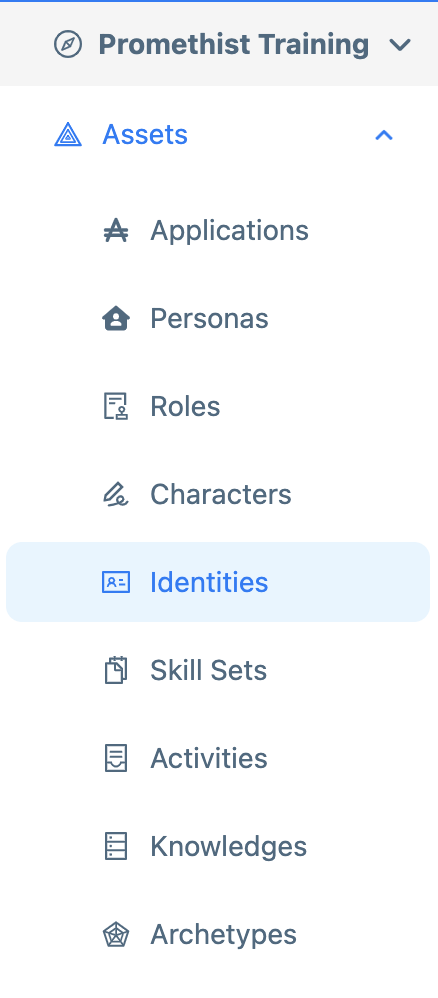
Navigate to the asset "Identities"
-
Click on "Create"

Fill in the fields as described in the Identity Properties table below.
Identity Properties
| Property | Description |
|---|---|
Identity Asset Name |
Create a concise name associated with the identity. Example: Male with a casual professional appearance |
Avatar |
Choose from prepared 3D models to determine the visual appearance of the personas with this identity. |
Background |
Select the background which will appear behind the avatar. |
Voice |
Pick a voice that suits the desired tone of personas with this identity from the default selection. The process of creating a new voice—an alternative to using pre-set voices—will be covered in the Configurations chapter of this Manual. |
Compatible Archetypes |
Select archetypes that are compatible with this type of Identity. |
Gender |
Choose one of the three options to determine the gender. Take into account the end-user and their presupposed prejudices. |
Identity Description |
In a few short paragraphs, describe who the persona with this identity is. The goal is to provide a better illustration of their personal background. You can describe the persona’s history (e.g., education), interests, or behaviors (e.g., assertiveness vs. passivity). Stay on a general level—detailed attributes are covered in the Specific Features section. |
Specific Features |
This section includes columns ranging from Age to Greatest Fears and serves to deepen the unity of the persona’s psychological and social makeup. As these features appear in separate columns, ensure their consistency. For example, check that Ethnicity matches the visual appearance of the selected avatar. Use full sentences rather than short phrases to help the language model make better use of the provided information. |
Humor |
The final three columns in the Specific Features section focus on the humor style typical for the persona. Humor Type: Choose one of four general humor categories. Example: For a persona in a wellbeing app, Affiliative humor may work best. A motivational persona might lean toward Self-Enhancing humor. Humor Subtype: List common topics the persona jokes about. Example: A persona navigating bureaucratic systems might joke about red tape to build rapport. Humor Theme: Define the emotional tone of the persona’s jokes and entertainment style. Example: Soft-hearted jokes vs. sarcasm as dominant tones. |
Modalities
In the Modalities section, you specify the persona’s communication style through sample speech acts.
|
For each modality, include examples that reflect how a persona with this identity would typically express themselves. |
Example:
-
For a professional adviser persona in the Reactions problem column:
-
"Let’s find the best solution for you."
-
"Please share some details so we can resolve this together."
-
-
For a wellbeing app persona:
-
"I’m here to help you."
-
"We’ll get through this together."
-
|
The language model won’t repeat these examples verbatim. It will use them to understand the tone and style appropriate for the identity. You don’t have to fill out every speech act—just focus on the ones most essential for your specific identity. |
Finalizing the Identity
Once you have completed all desired fields for the new Identity:
-
Click the Create button in the bottom-right corner.

Your Identity is now created and saved. You can view it in the Identity main page.\
You Want to Edit or Delete Your Application?
Edit an Identity
To modify your Identity:
-
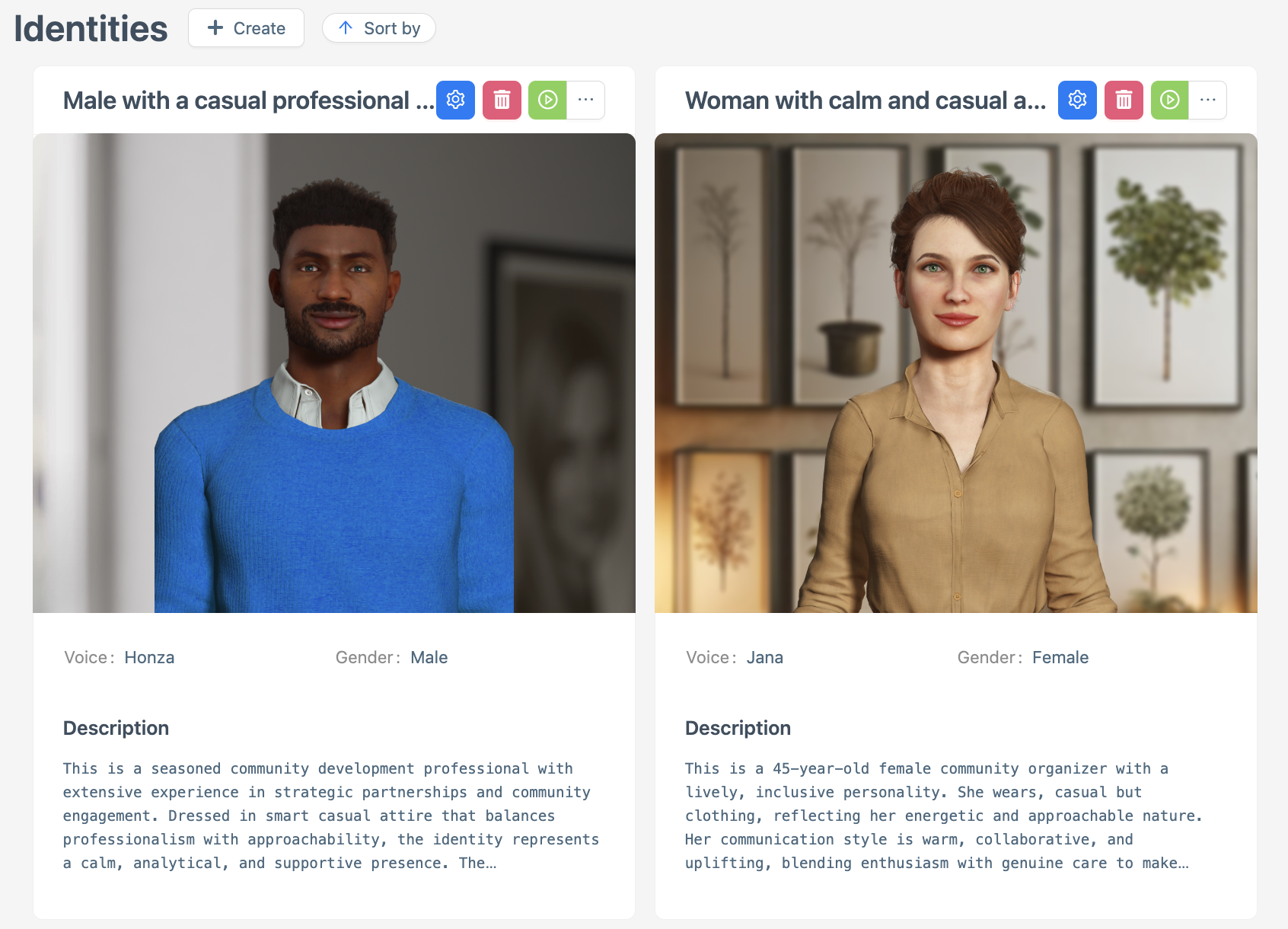
Navigate to the Identities main page and select the Identity you want to modify.
-
Click the Edit button on the Identity’s profile.

-
Update the Identity Name, Avatar, Voice or any other field as needed.
-
Click Save to apply changes or Return to discard them.

-
Test the updated Identity How to Test an Identity.
Delete Your Created Identity
To remove your Identity:
-
Navigate to the Identities main page.
-
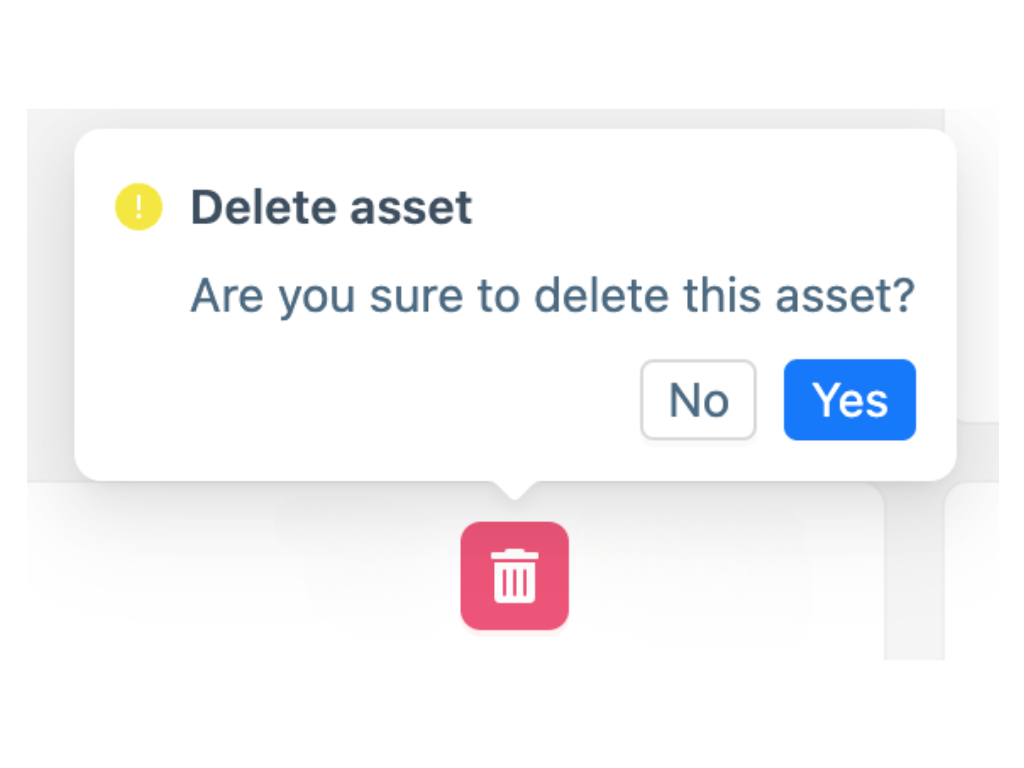
On the Identities main page, click the Delete button next to the Identity you want to remove. A confirmation window will open, asking if you want to delete the asset. Select Yes to delete the Identity or No to cancel.
|
The Identity will disappear from the main Identities view screen and from any pending publishing changes if it has not been published. |